This guide walks through the basic video creation flow from a blank prompt to a refined video.
Start from Home
On Home, use the composer labeled Describe your video....
Write one complete sentence that explains the outcome you want. You do not need a perfect prompt, but the first result is better when you include the video type, audience, and platform.

Example:
Make a 15-second vertical product teaser for an AI photo editor. Use quick cuts, bold captions, and a polished creator-tech style.Press the send arrow to create the project.
Use a focused first prompt
For best results, include:
- Format: launch video, explainer, social ad, tutorial, recap, announcement, or demo.
- Length: 10 seconds, 20 seconds, 30 seconds, or another target duration.
- Aspect ratio: vertical 9:16 or landscape 16:9.
- Visual style: cinematic, clean, comedic, editorial, premium, playful, or documentary.
- Required content: product name, tagline, scenes, captions, or call to action.
Review the first draft
When the workspace opens, play the preview on the right side of the screen.
Use the preview controls to:
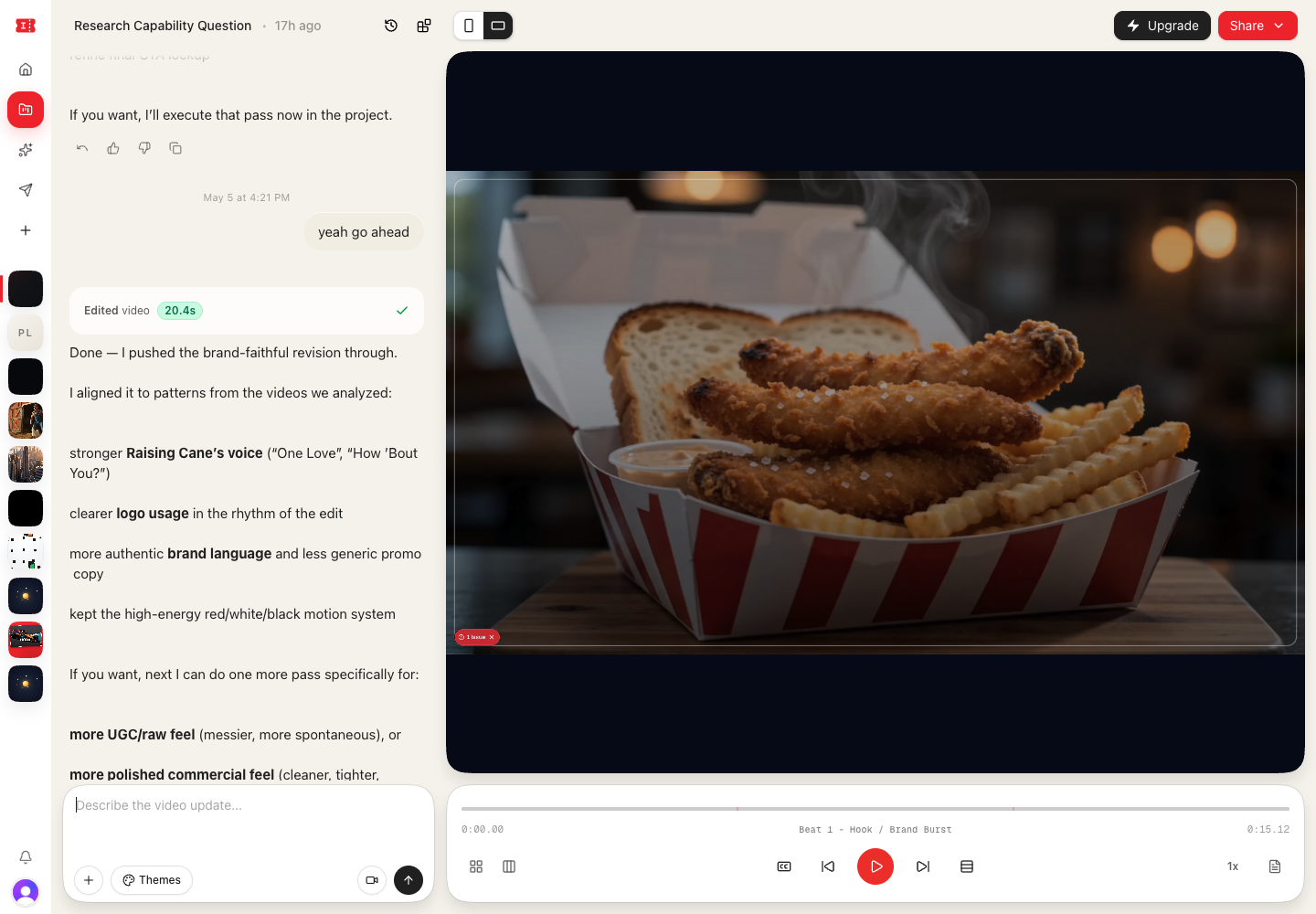
- Play or pause the video.
- Skip backward or forward.
- Seek through the progress bar.
- Open the timeline panel.
- Show section labels.
- Add or refresh captions.
Use the portrait and landscape buttons above the preview if the video needs a different aspect ratio.
Ask for revisions
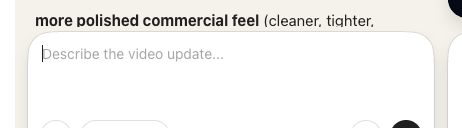
Use the composer labeled Describe the video update... to refine the current version.
Good revision prompts are concrete:
Make the first three seconds more urgent and add larger captions.Keep the structure, but make the visuals feel more premium and reduce the amount of text on screen.Change the ending to show the product name and a clear call to action.Each revision creates another version that you can review from Open history.
Add references
Use the plus button in the workspace composer to attach images, videos, or documents.
References are useful when you want to provide:
- Product screenshots.
- Brand assets.
- Example videos.
- Raw footage.
- Creative briefs.
- Copy or script notes.
Use Themes when you want to set or reuse a visual style.
Finish the video
When the preview looks right, open Share.
Use Export to render an MP4, Post to publish to a connected channel, Save template to reuse the structure, or Share Link to send a copyable starter project to someone else.