Impractical is a video workspace built around a simple loop: describe what you want, review the generated video, refine it in chat, then export, share, post, or save the result as a reusable template.
1. Open the app
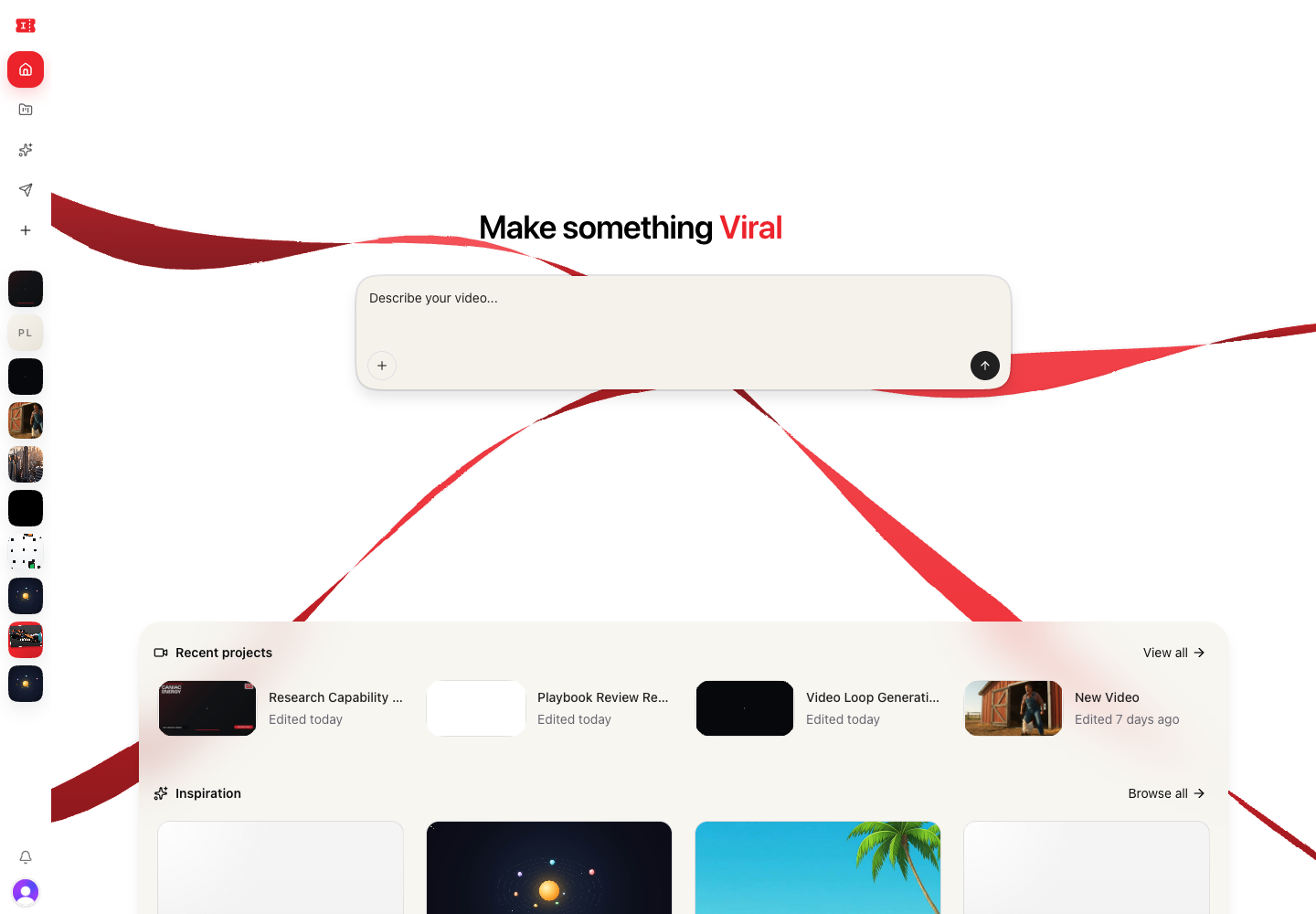
After signing in, the app opens on the Home page. The main composer says Describe your video....
Use this composer when you already know what you want to make. You can also open Projects from the sidebar if you want to continue something you started earlier.
2. Start a video
Type a short description of the video you want, then press the send arrow.

Good starting prompts usually include:
- The subject or product.
- The audience or platform.
- The desired format, such as launch video, explainer, social ad, recap, or product demo.
- The aspect ratio, if it matters.
- Any tone or visual direction.
Example:
Create a 20-second vertical launch video for a new AI design tool. Make it fast, polished, and optimized for TikTok.3. Review the workspace
Once a project opens, the workspace is split into a chat area and a preview area.
Use the chat area to ask for changes. Use the preview area to play the current version, scrub the timeline, change aspect ratio, add captions, open the timeline, or inspect sections.
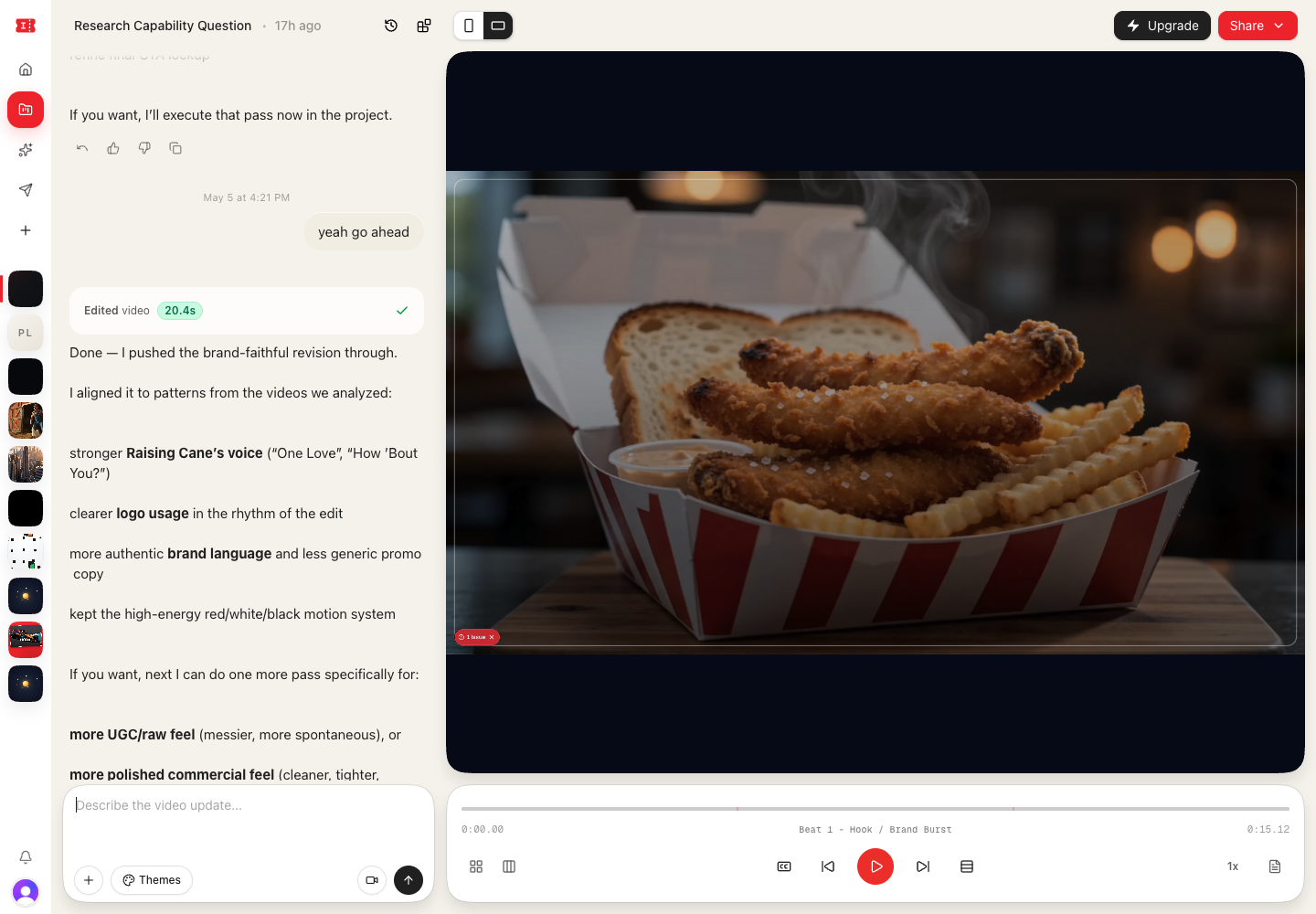
Key controls:
- Project name: rename the project from the top of the workspace.
- Open history: review prior generated versions.
- Portrait and landscape buttons: switch between 9:16 and 16:9.
- Play controls: play, pause, skip, seek, and adjust playback speed.
- Timeline button: open the timeline panel.
- Share: open export, posting, template, and share-link options.
4. Refine with chat
Use the workspace composer, which says Describe the video update..., to request changes.
You can ask for specific edits like:
- “Make the opening hook faster.”
- “Change the captions to be bolder.”
- “Use a warmer color palette.”
- “Add a product close-up in the middle.”
- “Make this 9:16 for TikTok.”
Attach images, videos, audio, or documents with the plus button when you want the model to use references. Use Themes to apply a style direction. Use the recorder button to attach recorded audio or video.
5. Share the result
Open Share when the video is ready.
The share modal has four tabs:
- Export: render and download an MP4.
- Post: publish the video to connected social channels.
- Save template: turn the current project into a reusable template.
- Share Link: generate a link that lets someone else create their own copy.
Free exports include an Impractical watermark. Paid export plans can render clean exports.
6. Keep projects organized
Use Projects to find previous work. The Projects page supports search, sort, visibility filters, sharing, renaming, and deletion.
Use Templates when you want to start from a reusable structure instead of a blank project.