Impractical can help you publish generated videos to connected social channels.
Open Posts
Use Posts in the sidebar.
The Posts page shows channel cards, post performance stats, a post list, and a Create post button.
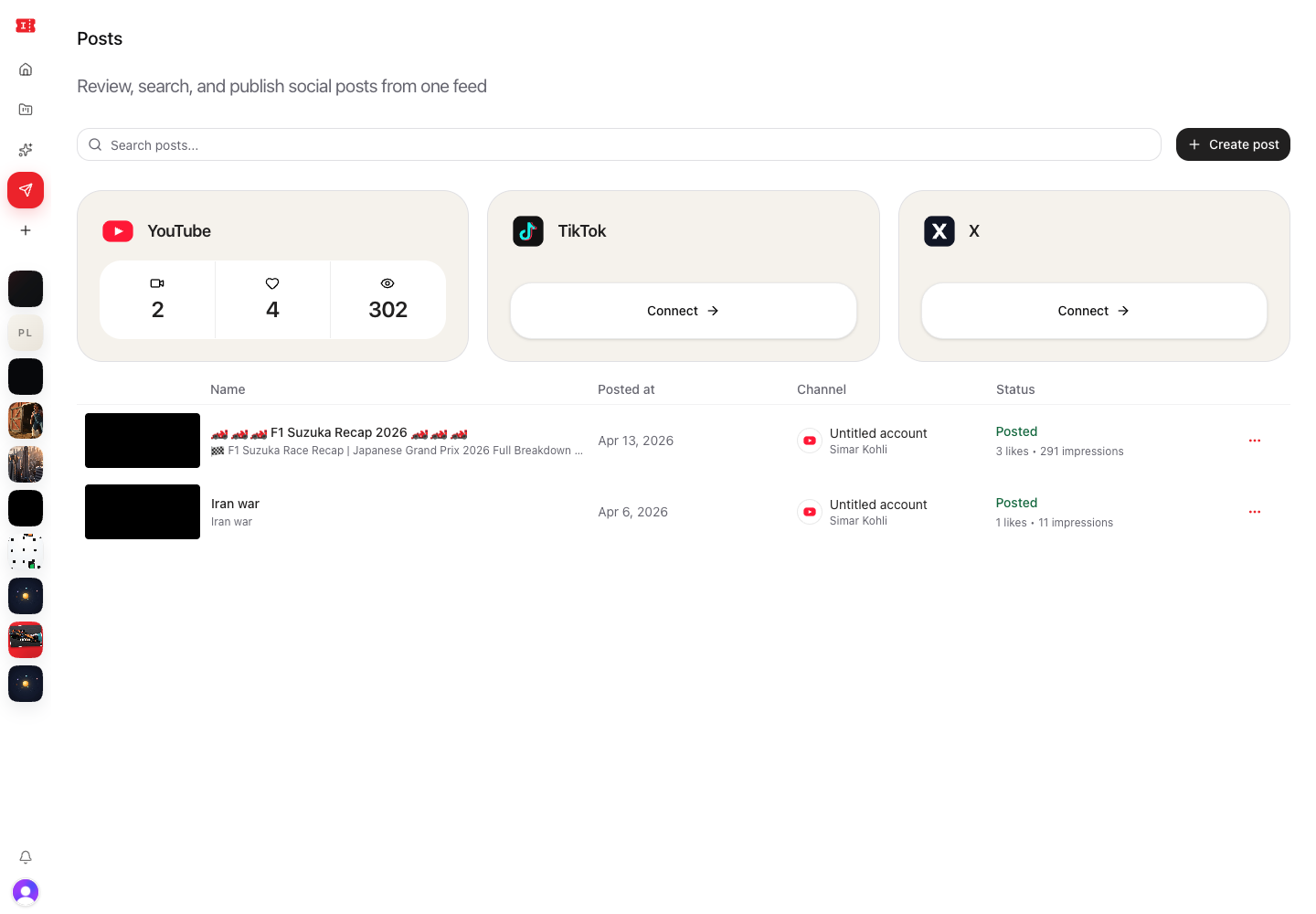
Supported channel cards include:
- YouTube
- TikTok
- X
Connect a channel
If a channel is not connected, select Connect on its card.
Complete the provider authorization flow. After connecting, the channel card can show post counts, likes, and impressions.
Create a post from Posts
Select Create post.
Add:
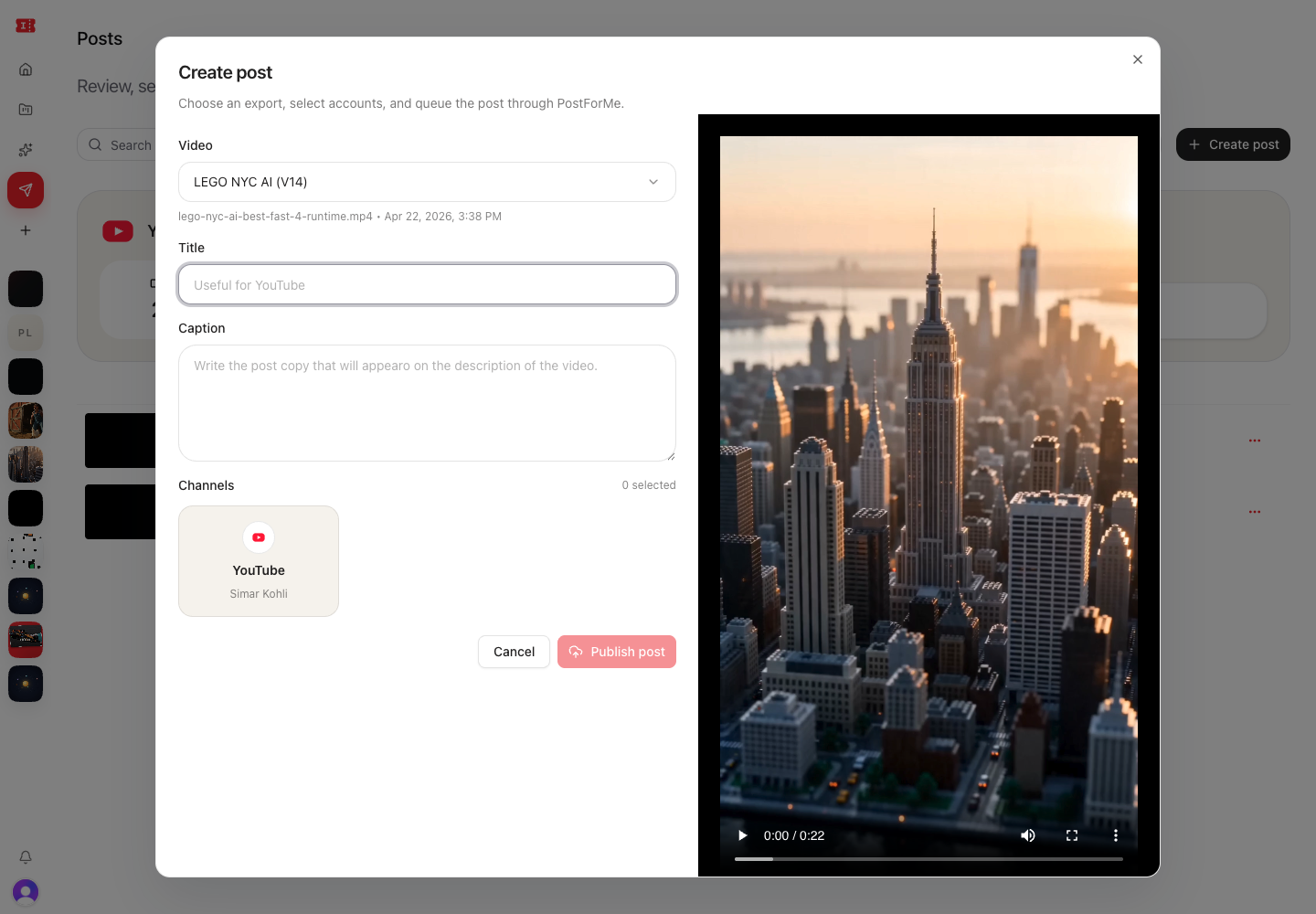
- Video source
- Title
- Caption
- Channels
Then select Publish post.
Post from a project
Open a project, select Share, then choose Post.
This uses the current project as the video source. Add the title, caption, and connected channels before publishing.
Track posts
The post list shows each publication with:
- Name
- Posted date
- Channel
- Status
- Performance metrics when available
Statuses can include posting states, posted states, or issue states depending on the provider response.
Delete a post
Some providers only allow deleting draft or scheduled posts through the publishing integration.
When deletion is available, use the post row's more-options menu. Published posts may need to be managed directly on the social platform.
Posting checklist
Before publishing:
- Confirm the video is the right version.
- Check the title and caption.
- Select the intended channels.
- Confirm platform-specific requirements such as duration and aspect ratio.
- Review the final preview after export if the post waits for an export.